
How To Optimize Power BI Sharing Through SharePoint Easily
how to Optimize Power BI Sharing Through SharePoint Easily
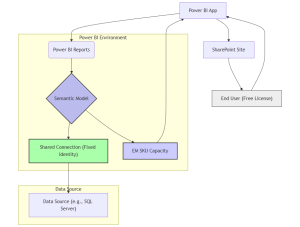
Organizations looking to maximize the value of their business intelligence investments often face challenges balancing comprehensive data access with licensing costs and security requirements. This article outlines a strategic approach to sharing Power BI reports with minimal licensing costs while maintaining proper security controls. By implementing a separate semantic model with shared connections and embedding Power BI content into SharePoint, organizations can create an efficient, cost-effective reporting solution. here is how to Optimize Power BI Sharing Through SharePoint Easily
The Architecture: Minimum Permission Design
Separate Semantic Model
At the foundation of this architecture is the separation of your semantic model (dataset) from your reports. This separation provides several key benefits:
- Centralized Data Governance: A single semantic model serves as the “single source of truth” for all reports.
- Simplified Security Management: Security and permissions can be managed in one place rather than at each report level.
- Consistent Data Definitions: Business metrics, calculations, and terminology remain consistent across all reports.
- Performance Optimization: The semantic model can be optimized independently from the visualization layer.
The semantic model contains all necessary data transformations, relationships, measures, and calculated columns. By separating this from the reports, you allow report developers to focus on visualization and insight delivery rather than data preparation.
Shared Connection with OAuth 2.0
The shared connection approach using OAuth 2.0 is central to minimizing licensing requirements:
- OAuth 2.0 Authentication: Provides a more secure token-based authentication flow.
- Delegated Access: Enables the semantic model to access data sources without storing credentials.
- Row-Level Security (Optional): Restricts what data users can see.
- Enhanced Security: Offers modern security features, including short-lived access tokens.
- Simplified Token Management: Automatically manages connection tokens.
This approach effectively decouples authentication to the source data from the user identity, allowing free users to view the data without requiring Pro or Premium Per User (PPU) licenses.
Power BI App for Organization
Power BI Apps serve as containers that bundle reports, dashboards, and datasets into a cohesive package:
- Organized Content Delivery: Groups related reports logically.
- Streamlined Permission Management: Assigns permissions at the app level.
- Consistent User Experience: Provides a curated experience.
- Simplified Updates: Ensures users always see the most recent version.
Minimizing Licensing Costs
Embedding in SharePoint
Embedding Power BI content in SharePoint provides significant cost benefits:
- Free User Access: Users with free Power BI licenses can view embedded content.
- Familiar Environment: Leverages existing SharePoint infrastructure.
- Integration with Other Content: Places reports alongside related documents.
- Single Sign-On: Eliminates the need for separate authentication.
Utilizing Embedded Capacity (EM SKU)
The Embedded Capacity (EM SKU) enables cost-efficient architecture:
- Shared Service Resources: Provides computational resources for rendering reports.
- No Per-User Premium Requirement: Serves all users under a fixed cost model.
- Scalability: Accommodates growing user numbers.
- Consistent Performance: Ensures reliable performance.
Implementation Guide
Step 1: Create and Configure the Semantic Model
- Develop in Power BI Desktop
- Implement data transformations
- Configure Row-Level Security (RLS) if needed
- Publish to a dedicated workspace
Step 2: Set Up the Shared Connection with OAuth 2.0
- Register an application in Azure Active Directory
- Configure API permissions
- Set up consent workflow
- Configure Power BI data source connection with OAuth 2.0
Step 3: Create Power BI Reports
- Develop reports using the published semantic model
- Connect via “Live Connection”
- Focus on visualization and UX
- Publish reports to the workspace
Step 4: Create and Configure a Power BI App
- Create a Power BI App
- Select reports to include
- Configure settings and navigation
- Publish the app
Step 5: Set Up EM Capacity
- Purchase appropriate EM SKU
- Assign the workspace to EM capacity
Step 6: Embed in SharePoint
- Identify the SharePoint site
- Add Power BI web part
- Configure permissions
- Test access
Security Considerations
- OAuth Application Security: Limit permissions.
- Token Management: Implement lifecycle management.
- SharePoint Security: Align permissions with Power BI access.
- Regular Security Reviews: Audit access and permissions.
- Data Classification: Ensure appropriate controls.
Benefits and Limitations
Benefits
- Cost Efficiency: Reduces per-user licensing costs
- Enhanced Security: Uses OAuth 2.0 authentication
- Simplified Management: Centralized content and security
- Consistent User Experience: Cohesive reporting environment
- Scalability: Supports growing user bases
- Integration: Seamlessly fits SharePoint environments
Limitations
- OAuth Configuration Complexity: Requires initial setup
- Limited Interactivity: Some features may not be available to free users
- Dependency on SharePoint: Requires SharePoint Online or on-premises
- Administration Overhead: Needs careful planning
- Feature Restrictions: Some Power BI features are limited
- Update Management: Reports require re-publishing
Conclusion
The minimum permission approach provides a strategic framework for organizations looking to maximize Power BI investments while controlling costs. By implementing a separate semantic model, OAuth 2.0 shared connections, Power BI Apps, and EM capacity, organizations can deliver powerful insights to a wide audience without requiring individual premium licenses.

Author: Apeksha Saraf
Apeksha Saraf is an accomplished Full Stack BI Developer with 10 years of experience in designing and implementing end-to-end business intelligence solutions. At Orange Data Tech, she leverages her deep expertise in data analytics, visualization, and software development to transform complex data into actionable insights. Apeksha’s proficiency in both front-end and back-end development, combined with her innovative approach, enables her to deliver robust, scalable, and user-centric BI solutions. Her commitment to excellence and passion for empowering businesses with data-driven strategies make her an invaluable asset in driving digital transformation and informed decision-making.